Supported features:
Measured Circle
Measured Cylinder
Measured Point
Measured Plane
Measured Sphere
Measured Line
Measured Cone
For supported measured features, the Hit Targets button allows you to view or change hit data for the feature.
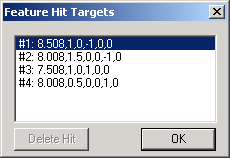
Clicking the Hit Targets button opens the Feature Hit Targets dialog box.
Feature Hit Targets dialog box
This dialog box lists the hit data by rows. The numbers to the left of the rows indicates the order of the hits. You can change the hit data by double-clicking on a row and editing its values in the resulting Measured Hits dialog box.
The Feature Hits Targets dialog box also lets you view and edit hit data by using the Graphic Display window. As long as the Feature Hit Targets dialog box remains open, you can do the following:
View
individual hits with red colored arrows. Click any of the rows
with hit data listed in the Feature Hit Targets
dialog box and the associated arrow in the Graphic Display area turns
red.

Click
and drag for each hit to a new position. You can move a hit by
selecting the red colored arrow on the Graphic
Display area and dragging it to a new location. Releasing the
mouse places the hit at that point and calculates the data, updating
the Feature Hit Targets dialog box.

Insert new hits. You can also insert new hits into an existing feature. Select a location within the hit list, and then take any desired hits. Once you press the END key, PC-DMIS asks if you want to insert the hit(s) at the current location. If you select Yes, PC-DMIS will insert the new hit(s) into that location of the current feature. If you select No, PC-DMIS will move the insert cursor to the next valid position in the measurement routine (generally immediately below the current feature in the Edit window) and create a new feature.
Data in the Feature Hit Targets dialog box and in the Edit window isn’t updated dynamically when you make changes using any of these methods. You need to first close the dialog box and then reopen it to see the changed hit data.
Delete Hit button
The Delete Hit button inside the Feature Hit Targets dialog box only becomes enabled when editing the hits for supported auto features. To delete an existing hit, select the hit and click Delete Hit. PC-DMIS removes the hit from the dialog box and from the measurement routine. See the "Display Hits button" topic in the "Creating Auto Features" chapter.