Use this documentation if you use Operation | Graphic Display Window | Auto Insert Moves |Legacy. If you are using Preview, see "Using Auto Insert Moves".
This procedure helps you insert safe clearance moves for your probe between all features or some features in your measurement routine. This procedure uses information discussed in the "Auto Insert Moves (Legacy)" subtopic in the "Clearance Moves Menu Items" topic above. Refer to that subtopic if you need more information on anything in this procedure.
If you want to insert moves between all the features, do not select any features from the Edit window. Then continue with step 3.
If you want to insert moves between a range of features, from the Edit window select those features. Then continue with step 3.
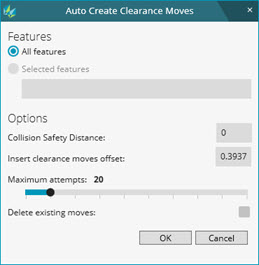
Choose Operation | Graphic Display Window | Clearance Moves | Auto Insert Moves. The software opens the Auto Create Clearance Moves dialog box. The dialog box selects either All Features or Selected features based on what you chose in steps 1 or 2.
Auto Create Clearance Moves dialog box
From the Auto Create Clearance Moves dialog box define the Collision Safety Distance.
Define the Insert clearance moves offset value.
Increase or decrease Maximum attempts to make the search for a solution more or less intensive.
If you want to delete all existing moves in your measurement routine before this routine inserts new move commands, mark the Delete existing moves check box.
Click OK to start the move insertion process.
The Execution dialog box opens during this process and runs through the program in offline mode.
The software's algorithm calculates and generates safe moves between the features in the measurement routine.
The Edit window shows the move points as they are added.
The Graphic Display window shows the path lines as the move points are added. Once the generation finishes, the Execution dialog box closes.
You can press ESC at any time during the generation process to cancel the process and remove any moves the software inserted.

 Diagram
of MOVE/POINT Calculations
Diagram
of MOVE/POINT Calculations