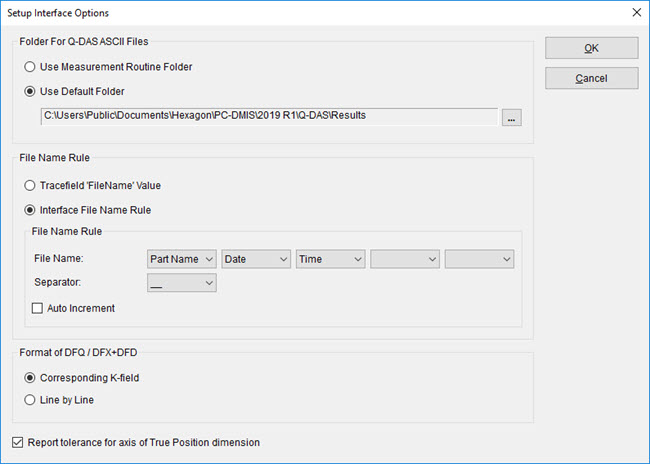
You need to set the properties for the Q-DAS ASCII Transfer Format file. When the operator executes a measurement routine, the generated file has information based on these properties.
The Setup | Interface Options menu option opens the Setup Interface Options dialog box.
Setup Interface Options dialog box
Folder For Q-DAS ASCII Files - This area lets you select the location where you can save the Q-DAS ASCII Transfer Format file.
Use Measurement Routine Folder - This option saves the file in the same folder as the PC-DMIS measurement routine.
Use Default Folder - This option lets you type the folder in the box. PC-DMIS automatically creates a Q-DAS Data folder in this default location:
C:\Users\Public\Documents\Hexagon\PC-DMIS\<version>\Q-DAS Data\Results
Where <version> is the PC-DMIS version.
File Name Rule - This area specifies how to name the Q-DAS ASCII Transfer Format file.
Tracefield 'FileName' Value - This option determines the file name from the TRACEFIELD command in the PC-DMIS measurement routine.
Interface File Name Rule - This option determines a file name based on a selection from a series of drop-down lists. You can also select an order and a type of separator for a file name.
Auto Increment - This check box determines whether to include the four-digit counter after the file name like 0001, 0002, and so forth. This is useful when you don't select Time from the series of Interface File Name Rule lists.
Format of DFQ/DFX+DFD - This area lets you select the format in which you want to save the Q-DAS ASCII Transfer Format file. PC-DMIS provides the Corresponding K-field and Line by Line options to output the resultant file. The Corresponding K-field option is selected by default. For information on the formats, see the Q-DAS ASCII Transfer documentation.
Report tolerance for axis of True Position dimension - This check box determines whether to divide the true position tolerance in half and set the result as the upper tolerance and lower tolerance for its axes. This check box is selected by default. If you clear this check box, the tolerance for the axes is zero.