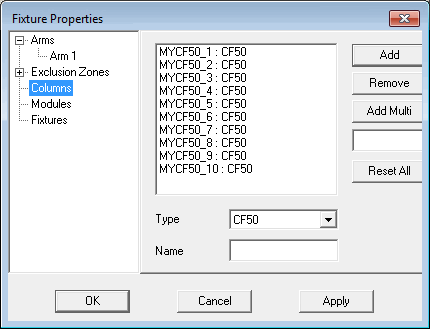
Fixture Properties dialog box - Columns
To add or remove columns, from the tree of options in the left sidebar, select Columns. The available columns appear in the list box on the right. The columns are in the following format:
Name : <type> (for example, C501 : CF50)
Add - Adds a new column of the selected type and specified name. If a name is not specified, a default name is added based on the column type.
Remove - Removes the selected columns from the list box.
Add Multi - Adds multiple columns into the list box based on the number that you enter in the box underneath this button. Columns are added to the list box for the selected type and are named based upon the type plus the sequence from 1 to N. For example, if you select C50- for the type, type 3 in the box, and click Add Multi, three columns are defined: C50-1, C50-2, and C50-3, respectively.
Reset All - Removes all of the columns from the internal structures and allows all columns to be available for later use. You need to manually remove the columns from the list. A prompt asks if you are sure you want to reset all columns.
Click Apply to apply any changes that you made to columns.
Click OK when you are done changing all fixture properties.