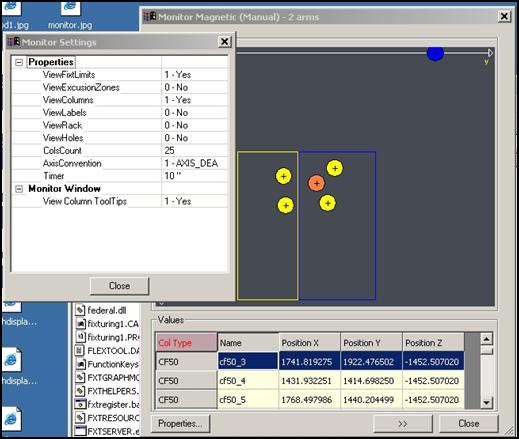
You can display a Monitor view that provides a 2D graphical display as well as a section that shows the textual values of the fixturing system status on the machine.
To open the Monitor window, from the Fixturing System Setup window, click Monitor.
Monitor view and Monitor Settings dialog box
Graphical Display - Each column type in the 2D view appears in a different color. When you hover your mouse over a column in this view, the column type appears. Information about the columns, plates, exclusion zones, and other properties also appears.
Values - Click >> to view the Values area underneath the graphical display. The Values area lists the updated type, name, and position information for all the columns. You can scroll through the list with the scroll bar, or click the >> button to browse through the column information.
Properties - Defines the items that appear and how they appear. This button opens the Monitor Settings dialog box. From this dialog box, you can show (1-Yes) or hide (0 - No) the following properties:
ViewedFixtLimits - Fixture limits
ViewExclusionZones - Exclusion zones
ViewColumns - Columns
ViewLabels - Labels
ViewRack - Rack
ViewHoles - Holes
ColsCount - Number of columns. You cannot edit this value.
AxisConvention - Correct axes convention for vertical CMMs only.
Timer - Time in seconds that fixturing information is updated to the Monitor view.
View Column ToolTips - Tooltips on columns. 1-Yes means this item appears when you move the pointer over a column.
Updating this information to the Monitor view may be a time-consuming process.