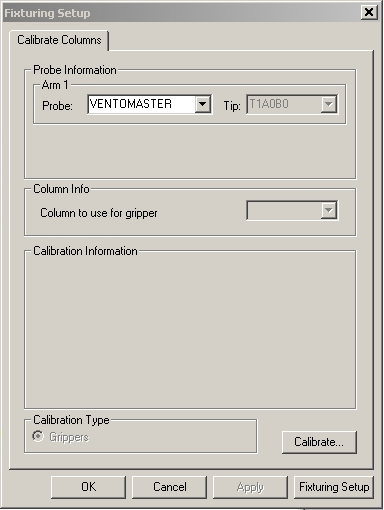
To calibrate the gripper, open the Calibrate Columns tab in the Fixturing Setup dialog box.
Fixturing Setup dialog box - Calibrate Columns tab
Follow this procedure to calibrate your grippers:
Select the probe file from the Probe list in the Probe Information area.
Select the tip you'll use to measure from the Tip list in the Probe Information area.
If the rack has been loaded and the column locations are known, select the column that you want to use from the list in the Column Info area to calibrate the gripper.
By default, the Grippers option is selected in the Calibration Type area.
Click the Calibrate button.
The calibration process begins with a prompt for you to load the column onto the gripper.
Manually load the column onto the gripper. Click OK to proceed.
The machine moves the column 200 mm from the edge of the fixturing volume in the Y axis and at the X axis where you loaded it.
The machine then moves to the edge of the usable fixture volume and back to its original starting point. This simulates the moves the machine will take when actually placing a fixture, and it improves the gripper calibration.
The machine then unloads the column, and the probe changes to the selected measure tip.
PC-DMIS prompts you to take a single hit on the column sphere.
Take a single hit on the column sphere. PC-DMIS repeats the above step two more times, with the column loaded, moved, unloaded, and measured automatically in DCC mode.
PC-DMIS stores the final result, the average of the three movement and measurement iterations, onto the Fixturing Server application. This application manages the fixturing data. You can run it on the same computer as PC-DMIS or from a completely different location over a network. The Fixturing Server application differs from the Fixture Server Interface application, which is used to configure your Flexible Fixturing system. See the "Using Fixturing System Setup" topic for more information.