Configuring Swift-Check Settings
Once you have the Swift-Check add-on installed, you need to configure the Swift-Check Settings in Inspect.
Press the Windows Start key and type Inspect.
From the Inspect app's shortcut icon, choose Run as Administrator.
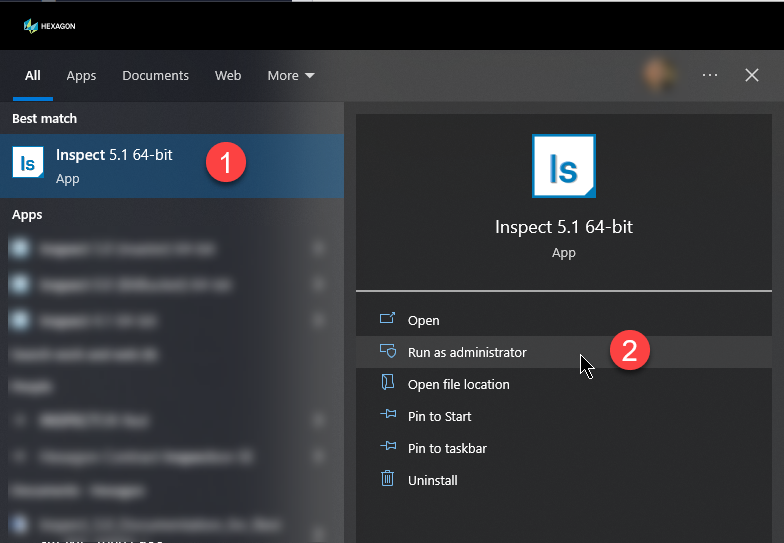
Allow the app to run.
From the Home screen, from the left sidebar, choose Settings to access the Settings screen.
From the Settings screen, in the Swift-Check area, click Configuration to show the Swift-Check Configuration screen.
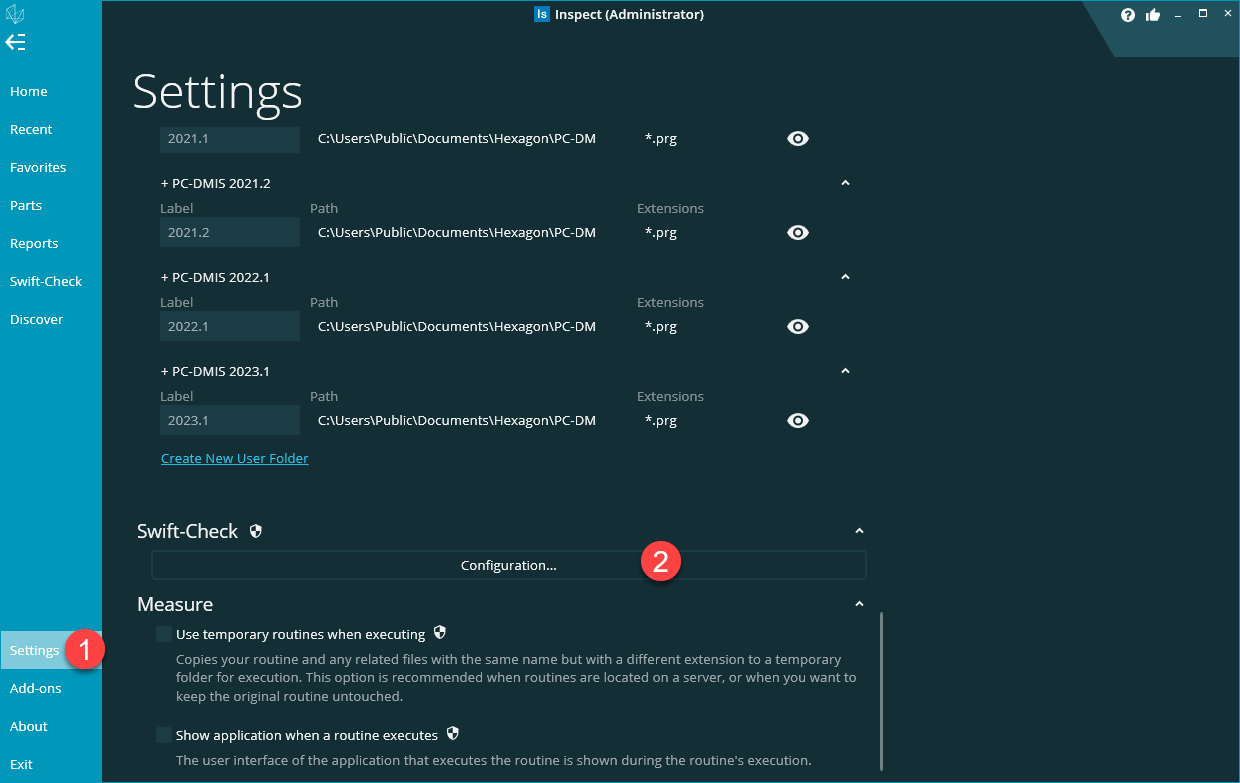
From the Swift-Check Configuration screen, do the following:
Click the General tab and modify its settings. For information, see "General Settings".
Click the Calibration tab and modify its settings. For information, see "Calibration Settings".
Click the Machine tab and modify its settings. For information, see "Machine Settings".
Once you have configured your Swift-Check settings, you can run Swift-Check tests inside Inspect with the add-on. For information, see the "Using Swift-Check to Validate the CMM" topic inside the Inspect help.
Press the Windows Start key and type Inspect.
From the Inspect app's shortcut icon, choose Run as Administrator.
Allow the app to run.
From the Home screen, from the left sidebar, choose Swift-Check to access the Swift-Check main screen.
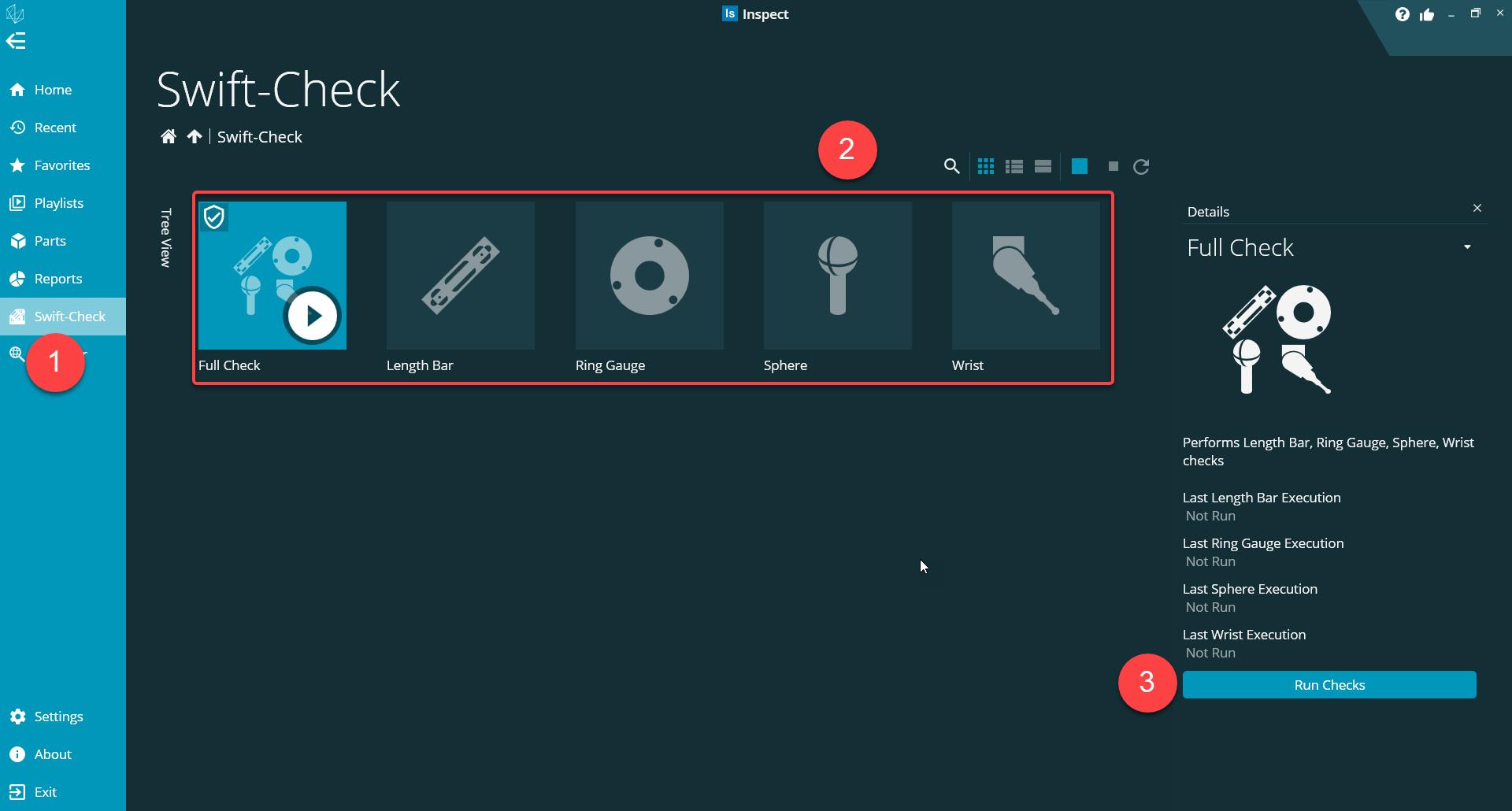
From the Swift-Check main screen, do the following:
Select at least one measurement routine tile from the Swift-Check main screen.
Click the Run Checks button in the Details pane on the right.
When Swift-Check prompts to enter your configuration, click the Review It Now… button. This takes you to the Swift-Check Configuration screen.
From the Swift-Check Configuration screen, do the following:
Click the General tab and modify its settings. For information, see "General Settings".
Click the Calibration tab and modify its settings. For information, see "Calibration Settings".
Click the Machine tab and modify its settings. For information, see "Machine Settings".
Once you have configured your Swift-Check settings, you can run Swift-Check tests inside Inspect with the add-on. For information, see the "Using Swift-Check to Validate the CMM" topic inside the Inspect help.
Notice
Once you have successfully set your configurations, you do not need to visit the Settings screen again, unless you wish to make changes. For example, when you replace a component, you may need to type a new calibrated size in the Settings screen.
Notice
The C:\Users\Public\Documents\Hexagon\SwiftCheck\settings.xml file is an editable text file that contains the information that you have just defined. If you use the same Swift-Check artifact on multiple CMM machines, you can copy this file to the other CMM machines to speed up the setup process. Keep in mind that you still need to edit machine-specific settings, such as the CMM accuracy.
If you manually edit this file, take care to maintain the same format and line order of the file. If you do not, the Swift-Check application and measurement routines may not work correctly.
Notice
For QUINDOS users, Inspect creates an additional file at C:\Quindos7Lib\Swiftcheck_Settings.xml. This is a copy of the settings.xml file translated into standard QUINDOS 7 ASCII format that QUINDOS uses to run the Swift-Check measurement routine. QUINDOS requires both files, whereas PC-DMIS only uses C:\Users\Public\Documents\Hexagon\SwiftCheck\settings.xml.