Editing the Temperature Compensation Command (Old Style)
PC-DMIS 2018 introduced a change to the temperature compensation command. If you are using an earlier version of PC-DMIS, or you have chosen to continue using the older style temperature compensation format via the relevant registry setting, you need to edit the temperature compensation command within the PC-DMIS Swift-Check measurement routine.
Load the SwiftCheck.prg measurement routine into your version of PC-DMIS.
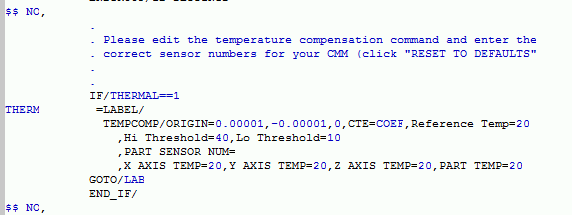
View the Edit window in command mode.
Locate the Temperature Compensation command that appears near the top of the routine.
Position the cursor within the command, then press F9 to edit.
 |
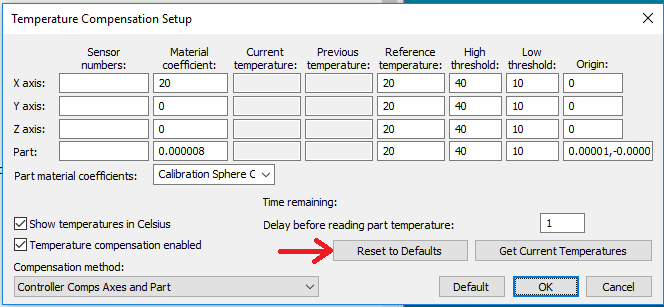
The Temperature Compensation Setup dialog opens (shown below), where you can edit the command. You can click Reset to Defaults to populate the relevant boxes with their default values. Alternatively, you may choose to input these values manually. Change any additional settings your CMM requires, and then click OK. If you require further instruction on the use of temperature compensation with your hardware, please consult the PC-DMIS help files or contact Hexagon applications support.
Note
NOTE: You do not need to enter part material coefficients; the measurement routine handles this automatically.
 |
For QUINDOS 7 and PC-DMIS 2018 or later, you do not need to edit anything. This is because Swift-Check automatically uses the correct sensor numbers and settings. However, for PC-DMIS, you may need to set the temperature compensation to automatic. To do this, in PC-DMIS, select Edit |Preferences |Temperature Compensation Setup.
Important
If the UseTemperatureCompensationV2 option in the Settings Editor is set to False so that you can use the old tempcomp command, you must specify the CTE value in the Temperature Compensation Setup window in millimeters.
If the UseTemperatureCompensationV2 option is set to True (default for 2017 R2 and later) so that you can use the new tempcomp command, you must enter the CTE value in the Temperature Compensation Setup dialog box as a power of 10-6.