Temperature Compensation
Note
PC-DMIS 2018 introduced a change to the temperature compensation command. If you are using an earlier version of PC-DMIS, or you have chosen to continue using the older style temperature compensation format via the relevant registry setting, you need to edit the temperature compensation command within the PC-DMIS Swift-Check measurement routine.
Please see "Editing the Temperature Compensation Command (Old Style)" for more information.
Swift-Check turns on the Use Temperature Compensation option every time you run the program. It is best practice to utilize this feature if you have turned on temperature compensation, and your CMM has a part temperature sensor. When you select the Use Temperature Compensation option in Swift-Check, you activate the relevant commands in the PC-DMIS or QUINDOS measurement routine.
Caution
CAUTION: If your machine does not support temperature compensation, or you disabled it, you must deselect the Use Temperature Compensation option, as it may prevent the measurement routine from executing correctly.
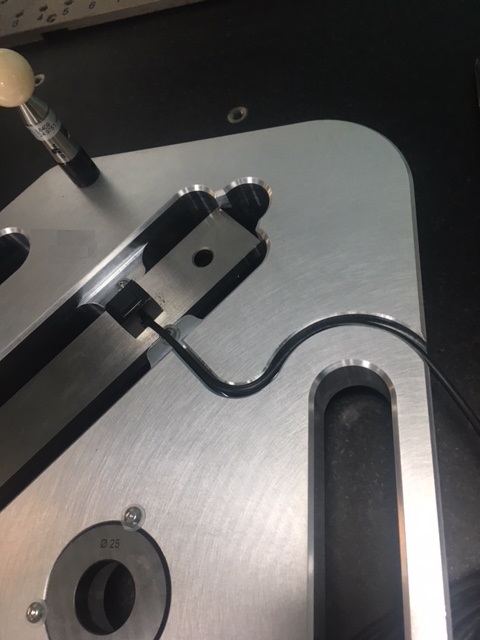
If you select the Use Temperature Compensation option, the measurement routine reads the part temperature before each measurement and records it with the measurement result. The Swift-Check plate has a groove to hold the temperature sensor wire in place so that it avoids contact with the probe during measurement. Position the part temperature sensor, as shown below.
 |
Caution
CAUTION: Be careful not to twist the temperature sensor wire where it enters the sensor, as this can break the electrical contact and make your sensor inoperable.