HxGN NC Server Activation
You must activate the HxGN NC Server application anytime one of these occurs:
The first-time you install the HxGN NC Server application.
You make any modification to the HxGN NC Server license.
You make an update to the HxGN NC Server SMA.
If the HxGN NC Server license is not activated, when the software starts up, it displays a message stating that your product is not activated. You can use the application in 60 minute increments until you activate it.
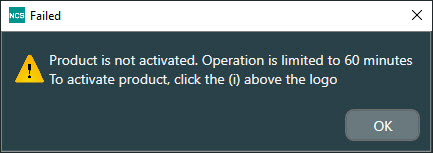
Until you activate the application, it automatically shuts down when the time limit expires. You can restart the application manually and use it for another 60 minutes.
When the product is not activated, it displays a white Information icon ( ) in the lower-right corner of the main screen.

Click the icon to open the About dialog box and begin the activation process.
Activating the HxGN NC Server Application Through Email
To activate HxGN NC Server application through email, follow these steps:
In the lower-right of the main HxGN NC Server application, click the white Information button (
) to open the About dialog box.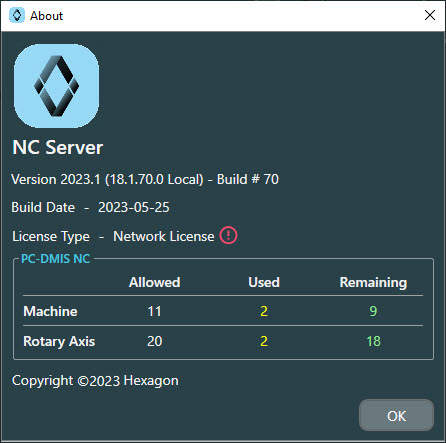
In the License Type area of the About dialog box, click the red Information icon (
 ) to open the License Activation dialog box.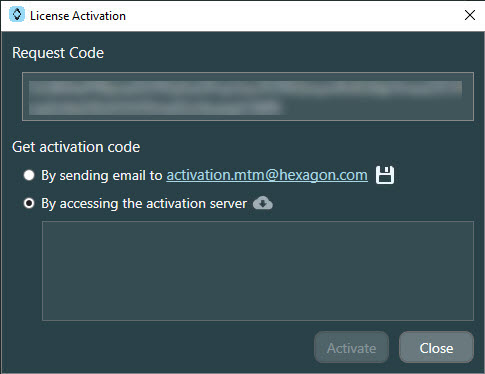
In the Get activation code area, select the By sending email to activation.mtm@hexagon.com option.
You have two options to send the Request code to Hexagon to get the Activation code:
From the Request Code area, copy the request code and email it to the Hexagon activation email address shown in the dialog box.
Click the disk icon (
 ) to generate a RequestInfo.txt file. The file is saved in the "Licensing" folder where you installed the HxGN NC Server application. This is typically "C:\ProgramData\Hexagon\NC Server\Licensing". You can then email the Request file to the Hexagon activation address.
Hexagon responds with an email that contains the activation code. Copy and paste it into the Get activation code text box.
Click the Activate button (
 ).
).Once the product activates successfully, NC Server displays a congratulations message with a green check mark to inform you.
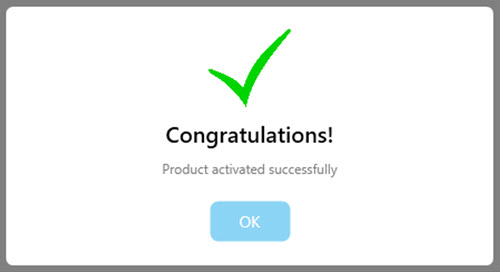
Click the OK button to close the message and complete the activation process.
Activating the HxGN NC Server Application Online
Note
You must have an Internet connection to perform the online activation.
If you have an Internet connection, you can activate the HxGN NC Server application in just a few steps. To do this:
In the lower-right of the main HxGN NC Server application, click the white Information button (
) to open the About dialog box.In the License Type area of the About dialog box, click the red Information icon (
) to open the License Activation dialog box.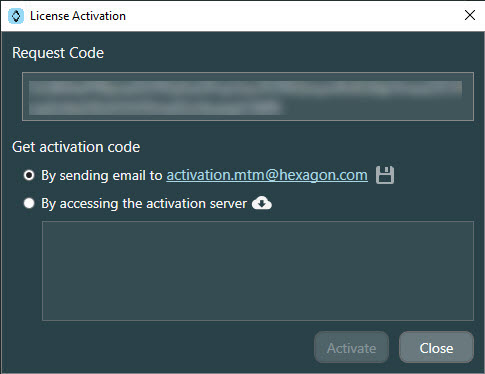
In the Get activation code area, select the By accessing the activation server option.
Click the Get the activation code online cloud icon (
 ). The new activation code displays in the Get activation code dialog box.
Click the Activate button (
).Once the product activates successfully, NC Server displays a congratulations message with a green check mark to inform you.
Click the OK button to close the message and complete the activation process.