NC Server Offline Manager Application Menu
On the left side of the screen are the main menu buttons that you use to work with NC Server Offline Manager.
Import
The Import button allows you to load NC Server configuration data that has been exported from NC Server with the Export function. You can import multiple servers.
Click the Import button to open the Add Offline Server dialog box.
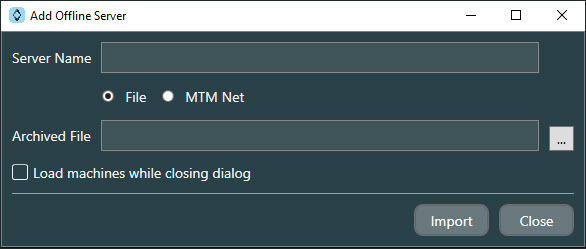
Add Offline Server dialog box
You can use the dialog box to import server data from a file or an MTM Net server into the NC Server Offline Manager.
To do this:
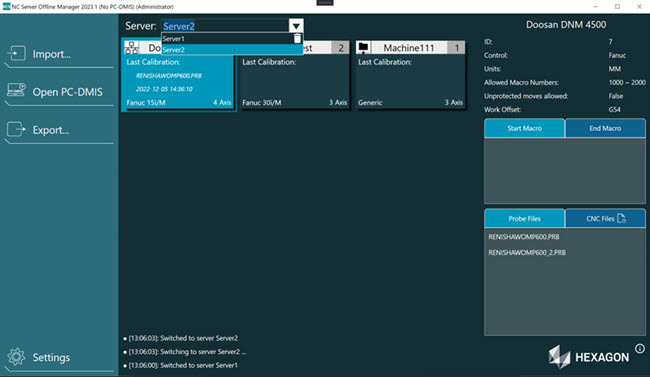
In the Server Name box, type a name for the server that you can recognize. NC Server Offline Manager displays the name you type in the list at the top of the main screen.
Select the location from where the server data is to be pulled into the NC Server Offline Manager. You have the option to pull data from a file if you select the File option, or from an MTM Net server if you select the MTM Net option.
If you select the File option, from the Archived File box, you must select the archived NC Server file:
Click the button with the three horizontal dots to show an Open dialog box.
From the Open dialog box, navigate to and select the file. Archived files have the ".online" extension and are created on the NC Server. For details on archived files, see "Offline Functions".
If you select the MTM Net option, you must enter the Host and Port information:
Type in the host address in the Host box.
Type in the port assignment in the Port box.
If you have multiple servers that are loaded in NC Server, and you want to immediately view the newly loaded server data, select the Load machines while closing dialog check box.
Click the Import button to load the server data.
Note that when you switch to a server in NC Server Offline Manager, if the source type of the server is MTM Net and there is no local data related to the server, NC Server Offline Manager automatically pulls the data (machine settings, probe information, journal data, etc.) from NC Server.
Export
The Export button allows you to place any number of CNC files and PC-DMIS files in a single file that can be transferred to the NC Server.
Note that when you export data in NC Server Offline Manager, if the source type of the current server is MTM Net, NC Server Offline Manager prompts you whether to push the data (CNC program, PC-DMIS measurement routine, CAD, JPG image files, etc.) to NC Server:
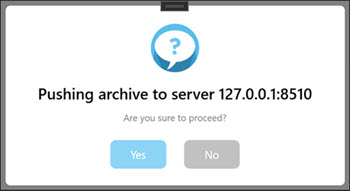
Click the Export button to open the File Collection dialog box.
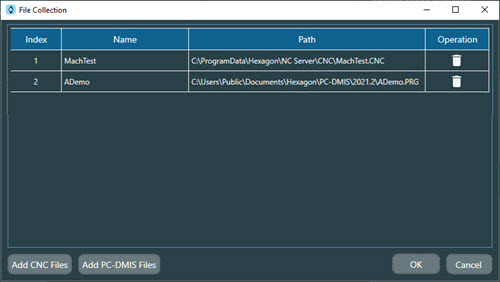
File Collection dialog box
To use this dialog box:
Click the Add CNC Files button and select the CNC files to add to the export package.
Click the Add PC-DMIS Files button and select the measurement routine (.prg) and CAD files to add to the export package.
Click the Delete icon
 in the Operation column of the dialog box to remove a file from the export package.
Click the OK button to create a compressed file with a ".offline" extension. the file contains the PC-DMIS (.prg) measurement routine, CAD, and CNC files. NC Server Offline Manager saves the file in the "archives\exports" folder of the NC Server installation location on your computer.
You can then use the Import option in the NC Server application to import this file.
Open PC-DMIS
NC Server Offline Manager enables the Open PC-DMIS button when PC-DMIS starts and Analyzing is turned off.
Click the Open PC-DMIS button to start the PC-DMIS application and access and run PC-DMIS measurement routines from NC Server.