NC Server Settings Dialog Box - General Tab
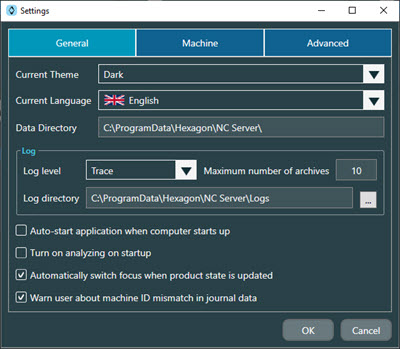
NC Server application Settings dialog box - General tab
Option | Description |
|---|---|
Current Theme | This option allows you to change from the standard Dark theme to the white background Light theme. |
Current Language | This list allows you to select the language for the NC Server user interface. |
Data Directory | This box displays the location of the root directory for NC Server data. You cannot edit the location in this box. It is for information purposes only. |
Log level | This list of options allows you to set the type of information you want to send to the log file:
|
Maximum number of archives | This is the maximum number of log files that the software archives. Once you exceed this number of archived log files, The software deletes the oldest archived log file before it saves a new archived file. |
Log directory | This is the location that NC Server saves log files. You can click the button with the three horizontal dots to the right of this box to navigate to and select a new folder. |
Auto-start application when computer starts up check box | When you select this check box, NC Server is added to the Startup group so that it starts up when your computer starts up. |
Turn on Analyzing on startup check box | Select this check box to automatically turn on the Analyzing switch when NC Server starts. |
Automatically switch focus when product state is updated check box | Select this check box to automatically change the focus to the product when there are multiple products defined on the machine. With this option selected, the focus changes when the product changes. |
Warn user about machine ID mismatch in journal data check box | Journal files contain information about the machine that created the data. If you select this check box, NC Server warns you if the analyzed data comes from an unexpected machine ID. |