NC Server Settings Dialog Box - Advanced Tab
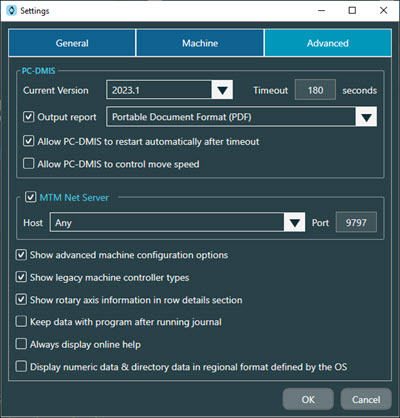
NC Server application Settings dialog box - Advanced tab
Option | Description | |
|---|---|---|
Current Version | This area shows a list of all compatible versions of PC-DMIS that are installed on your computer. You can use any of these PC-DMIS versions with NC Server. NoticeThe software only lists versions of PC-DMIS installed on your computer that are compatible with the current version of NC Server. | |
Timeout | This box displays the maximum time that NC Server waits for a response from PC-DMIS. If NC Server requests an action from PC-DMIS (such as analyzing data), and PC-DMIS does not respond within this timeout period, then NC Server assumes that PC-DMIS has hung or crashed. When this timeout expires, the software displays an error message that asks if you would like to restart PC-DMIS. | |
Output report check box | You can select this check box to automatically create a report every time you perform an analysis. The available formats for the default report are:
| |
Allow PC-DMIS to restart automatically after timeout check box | If you select this check box, when NC Server reaches the PC-DMIS Timeout value, NC Server attempts to restart PC-DMIS automatically without any user interaction. | |
Allow PC-DMIS to control move speed check box | If you select this check box, PC-DMIS controls the move speed of your machine. | |
MTM Net Server check box | Select this check box to communicate using an MTM Net server. When you select this check box, these options become enabled:
| |
Show advanced machine configuration options check box | Select this check box to display all available settings when you edit the Machine Configuration dialog box. This allows you to set some advanced features. It may also be useful when you edit configurations from legacy machines. | |
Show legacy machine controller types check box | Select this check box to display the controller list from earlier versions of NC Server. NoteUse this option only for testing. The items shown in the list when activated may not be supported and may not work as expected. | |
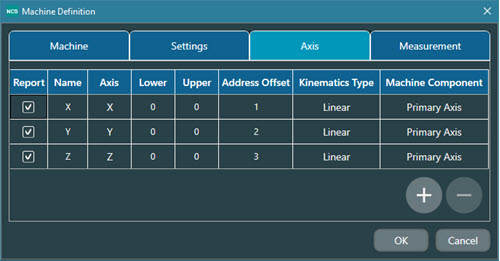
Show rotary axis information in row details section check box | Select this check box to show the rotary table's axis configuration data. To view the configuration data, you must have the Kinematic Type property for the rotary table set to Rotary Table. For rotary tables configured this way, click the table's row on the Axis tab of the Machine Definition dialog box.
Axis tab of the Machine Definition dialog box | |
Keep data with program after running journal check box | When you select this check box, NC Server keeps the generated data with the CNC program after you run the journal file. | |
Always display online help check box | Select this check box to always show the online help. This allows the help to always be available when you need it. | |
Display numeric data & directory data in regional format defined by the OS check box | Select this check box to always show your numeric and directory data in the regional format defined by the computer's operating system. |