Floating Machine Toolbar

If you hover your mouse pointer over a machine card. NC Server shows the floating Machine toolbar.
The available options for this toolbar are:
Button | Description |
|---|---|
 Edit | This option opens the Machine Definition dialog box that you can use to edit the selected machine. |
 Delete | This option deletes the selected machine and its associated machine card. |
 Generate | This button generates and uploads the macros for the selected machine. |
 Upload | This button uploads the CNC measurement routine file to the selected machine. To use this function:
NC Server informs you if the upload was successful or not. |
 View Report Folder | This option opens the folder that contains the reports for the selected machine. |
 Run Journal | This option opens the Run Journal dialog box for measurement data collected by the selected machine. You can click the Run Journal button to recall a previously executed journal file from the Execute Journal File dialog box. You can then review the results in PC-DMIS or perform further analysis on it. 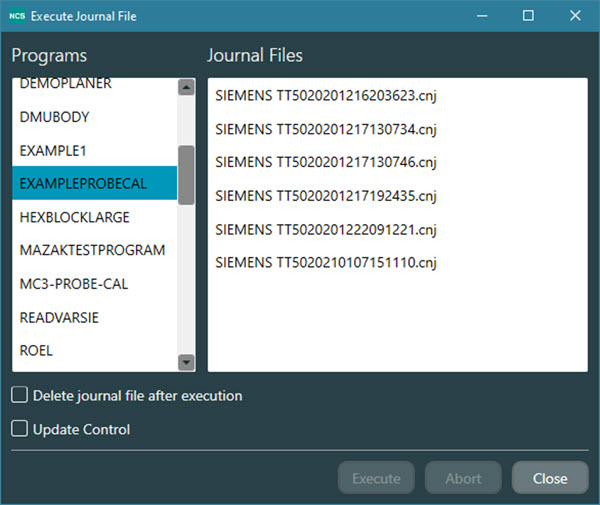 Execute Journal File dialog box To run a journal which was previously analyzed:
NC Server formats the journal file names as <Machine Name><Machine ID><Date><Time>, where: <Date> is yyyymmdd and <Time> is hhmmss In this way, you can use the file name to locate a specific journal file. NoteIf you originally used a program or journal file to update information on the machine (for example, work offset, tool offset, or write variable), then replaying a journal file does NOT update this information again. If you need to use the journal file to update the information on the control again, you must select the Update Control check box in the bottom-left of the Execute Journal File dialog box. |
 Head | This button opens the Rotary Head Builder utility. You must have at least one wrist-type axis defined in your machine's definition to enable this option. |