How To Measure a Plane
Note
Note that the Learn then Measure box is active.
Instructions | |||||
|---|---|---|---|---|---|
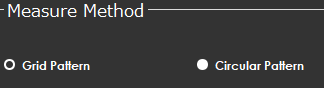
1 | Select measurement method.
| ||||
2 | Press the Selecting Measurement Face button to select an axis for the plane measurement. |
| |||
3 |
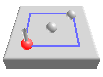
| Position the probe at the first point of the grid and press the Read Position button. |
| ||
4 |
| If at any time you need to correct the position, press the Remove Last Position button to cancel the previously read location, then repeat the previous step. | |||
5 |
| Position the probe at the second point of the grid and press the Read Position button. |
| ||
6 |
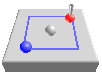
| Position the probe on the first point of the imaginary circle. |
| ||
7 |
| If at any time you need to correct the position, press the Remove Last Position button to cancel the previously read location, then repeat the previous step. | |||
8 |
| Position the probe on the second point of the imaginary circle. |
| ||
9 |
| Position the probe for an automatic measurement and press Execute button. Start the monitor macro on the machine. IMPORTANTNC Gage measures all four corners of the grid! Watch for objects in the measurement path. NC Gage starts at the first point and measures the plane in a square shape with two rows and two points per row by default. | |||
10 |
| Position the probe for an automatic measurement and press Execute button. Start the monitor macro on the machine. NC Gage measures the plane in a circular shape with five points on the circle. | |||
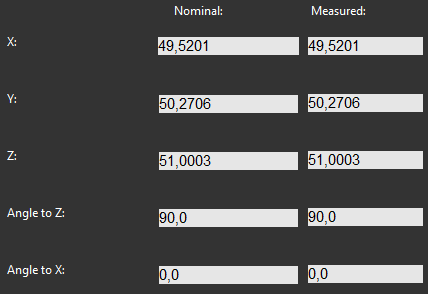
11 | Review the measured values on the screen and make any adjustments to the nominal values if necessary.
| ||||
12 |
| Press OK to add the command to the measurement program. | |||