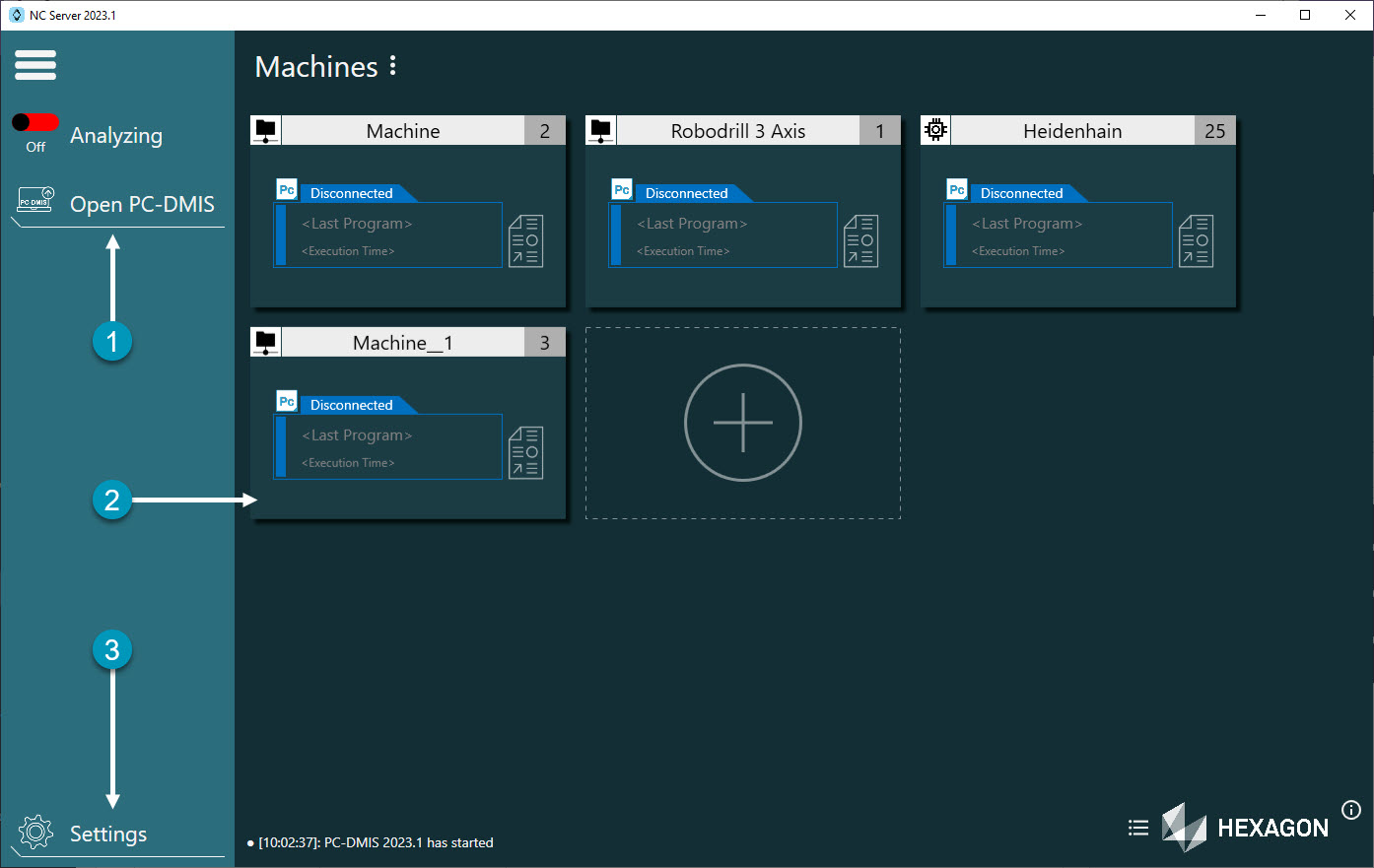
1 | Application Menu | This area provides functions that control the NC Server and its evaluation of measurement results. These functions include: Analyzing - Click this button to toggle this function on and and off. When you set this to on, it places NC Server in a state where it has full control of PC-DMIS that runs in the background. This allows NC Server to process measurement data and analyze measurement results. When you set this to off, you disconnect PC-DMIS from any machine it's connected to and enables the Open PC-DMIS function. For details, see the Analyzing section. Open PC-DMIS - NC Server only enables this function when the Analyzing option is off. This function allows you to access PC-DMIS to make changes to any measurement routine on the server. NoteWhen you turn Analyzing off, NC Server still collects results and maintains a queue of results that NC Sever will process as soon as you turn Analyzing back on. In this state, machines may have to wait for data to be processed and will show "Waiting" in orange on their respective machine card(s). Also, with Analyzing off, NC Server shows a waiting queue length warning triangle next to the Analyzing button. You can click this warning triangle to open a dialog that shows the contents of the queue.
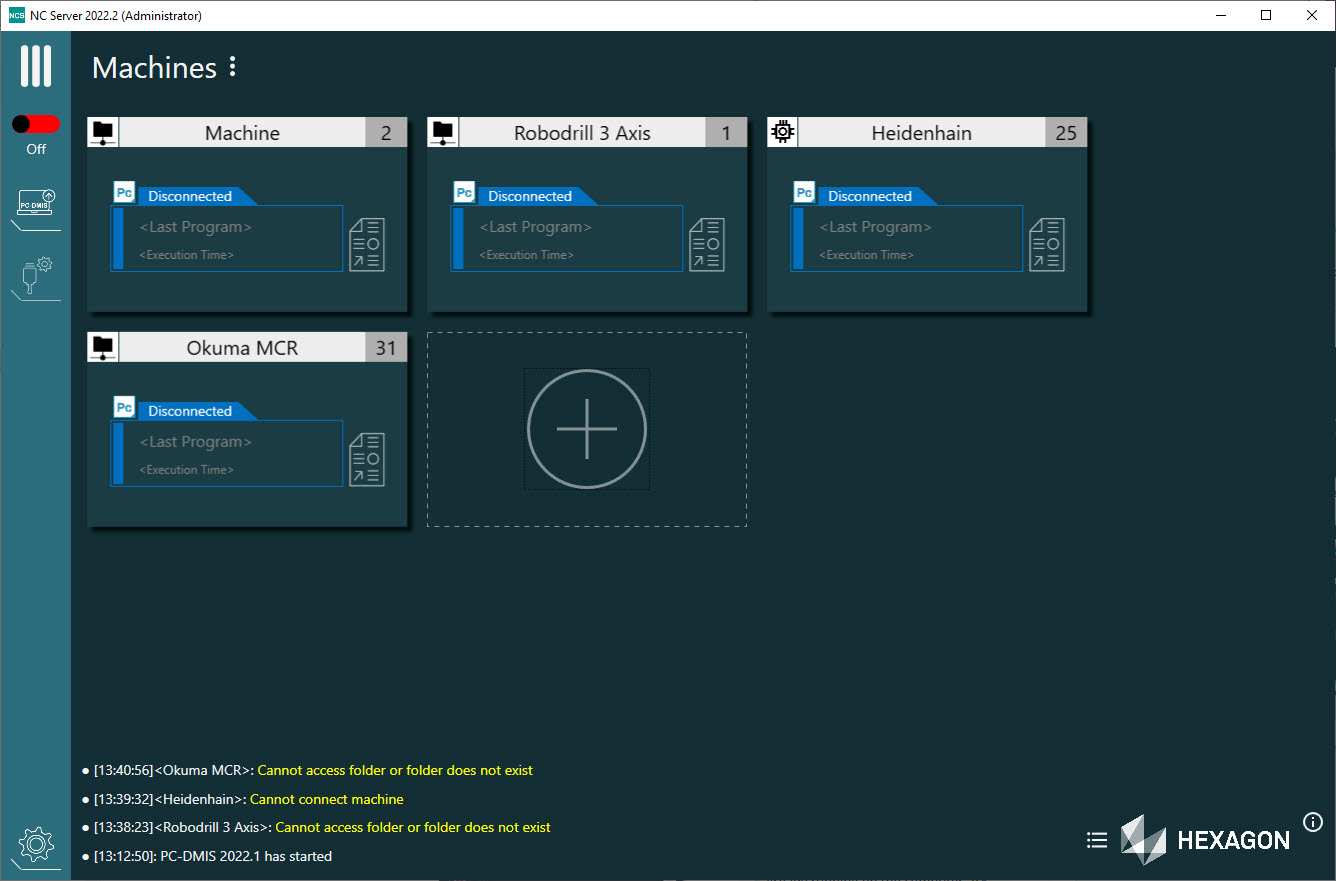
Click the three horizontal bar button  in the upper-left to collapse the left menu bar. The main screen looks like this when you collapse the left menu bar: in the upper-left to collapse the left menu bar. The main screen looks like this when you collapse the left menu bar: With the left menu bar collapsed, click the three vertical bar button  to expand the left menu bar. to expand the left menu bar. |
2 | Machines | This area provides an overview of the machines that NC Server has defined, the controls to act on the machines, and the machine definitions. You can hover your mouse pointer over any of the machine cards to display the Machine toolbar: From left to right, the buttons on the Machine toolbar are: Machine Settings - This button allows you to change settings for the selected machine card. For details, see "Settings". Delete - This button deletes the selected machine card. Generate Macros - This button generates and uploads the macros for the selected machine. Upload - This button uploads the CNC measurement routine file to the selected machine. Open Report Folder - This button opens a File Explorer window to the designated reports folder. Run Journal - This button opens an Open dialog box that you can use to navigate to and select the journal file to run on the selected machine. Head - This button opens the Rotary Head Builder utility. You must have at least one wrist-type axis defined in your machine's definition to enable this option.
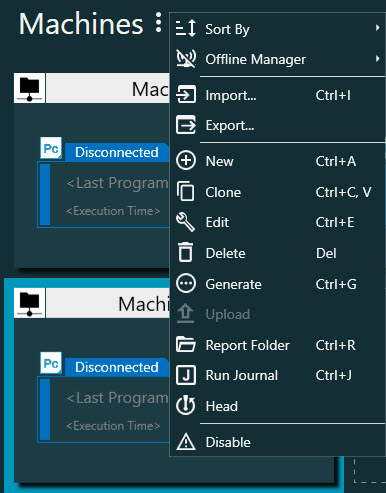
NC Server displays these options when you click the three stacked dots to the right of the Machines label: Sort By - This option allows you to sort the Machine Cards by Creation Time, Machine Name, or ID. Offline Manager - Click this menu item to display these options: Export - This option allows you to create a compressed file with a .online extension that contains all machine definitions, all probe calibration information, all PC-DMIS .prg measurement routine files, all CAD files, and all CNC files. Import - This option allows you to import the .offline file that contains the PC-DMIS .prg measurement routine, CAD and CNC files from the NC Server Offline Manager application.
Import - This option allows you to import backup files of your exported machine definitions. These backup files have a .backup extension. This way you can import the machine definitions from one computer to another computer that has NC Server installed and have the same machine definitions on multiple computers. Export - This option allows you to export your machine definitions so that you can then import them onto another computer that has NC Server installed. The exported file will have a .backup extension. NoteWith the NC Server Offline Manager, you can assign a name to the imported data set which helps to organize your data. This allows you to manage multiple "servers" from a single NC Server Offline Manager instance. New - This option opens the Machine Definition dialog box to create a new machine card for a new machine. For details on how to define a new machine, see "Machine Definitions". Clone - This option creates a copy of the machine. It opens the Machine Definition dialog box with all the data from the selected machine with the same name, but it assigns the machine a new ID number. Edit - This option allows you to view or make changes to the selected machine's configuration. Delete - This option allows you to delete the selected machine. Generate - This option allows you to generate and upload the macros for the selected machine. Upload - This option allows you to upload the CNC measurement routine file to the selected machine. Report Folder - This option opens a File Explorer window to the designated reports folder. Run Journal - This option opens an Open dialog box that you can use to navigate to and select the journal file to run on the selected machine. For details on how to use this option, see "Run Journal".Run Journal Head - This option opens the Rotary Head Builder utility. You must have at least one wrist-type axis defined in your machine's definition to enable this option. Disable - Machines that you set to "Disable" do not count against your license. NC Server ignores these machines.
|